Use cases
Build a research library, one workspace per project
Keep one Nisaba workspace for each research project. Save sources, highlight, ask questions in it, and share only when you choose.
A research library in Nisaba is one workspace per project. You save sources into it, highlight what matters and ask questions inside that workspace. Nothing moves out of your library, and nothing becomes public unless you choose it.
Create the workspace
- Open Workspaces in the sidebar and choose New workspace.
- Pick the kind. Manual: you add bookmarks yourself. Smart: bookmarks that match your conditions appear by themselves.
- Give it a name, and if you like a description and an accent color, then choose Create workspace.
Save sources and set rules
In the extension, pick the workspace under Tags and workspace before you save. In your Library, choose Select, mark bookmarks and choose Move to. Under Rules in the sidebar, simple if-this-then-that rules send saves from a site to a workspace. Save pages behind a login from the extension, because the server cannot fetch them.
Highlight and add notes
Open a source in the reader, select a passage and pick a color. Choose Add note to write down why it matters. Highlights stay with the bookmark. Highlights in the sidebar lets you search quotes and notes across the library.
Ask inside one workspace
In Ask, choose the workspace as the place to look. A sample question: "Which sources I saved disagree about sync conflicts?" The answer is written from the saves in that workspace and lists the pages it used. Open them and check the passages. AI in a workspace uses AI credits. AI output can be incomplete or wrong, so check important details at the sources named.
See the project as a map
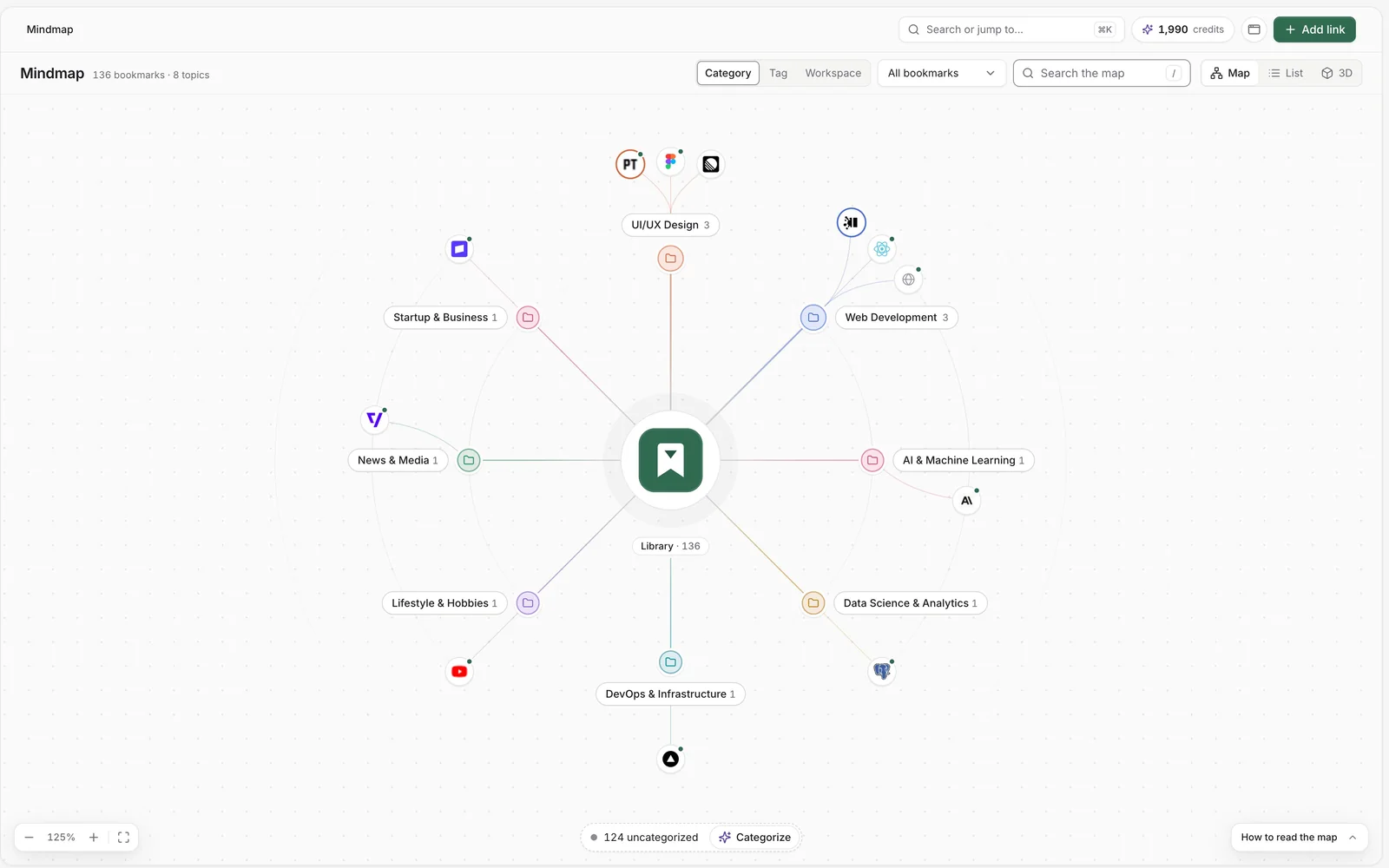
Open Mindmap in the sidebar and group by Workspace to see one project's topics and bookmarks. Bookmarks that are not categorized yet sit in one group. Choose Categorize to sort them with AI, which uses AI credits.
Share only when you choose
Private workspaces are never visible to anyone else. To share one, open it, choose Share and set Visibility to Public. Turn on Public RSS feed if people should follow new items in a feed reader. Anyone with the link sees the workspace's name, description, section names, and each item's title, link, site, tags and short summary. Your notes and highlights stay hidden, and public pages are excluded from search engines by default. Set Visibility back to Private to end sharing.
Limits
- Free allows 3 workspaces besides your Inbox, 1 publicly shared workspace, 3 automation rules and 3 RSS feeds. Pro has no limit on these, within the fair-use caps in the terms.
- If you have more than Free allows, they all stay and you can still open and edit them.
- Nisaba needs an internet connection, and the extension is for Chrome only.
Last updated: