Getting started
Import your bookmarks
Bring in bookmarks from your browser, Raindrop, Instapaper, a Pocket export, a spreadsheet or social network exports.
Bring in bookmark files from Chrome, Firefox, Edge and Safari, exports from Raindrop and Instapaper, or a CSV. A Pocket export works too if you downloaded it before Pocket closed its export on 12 November 2025. You see a preview before anything is imported.
Import a file
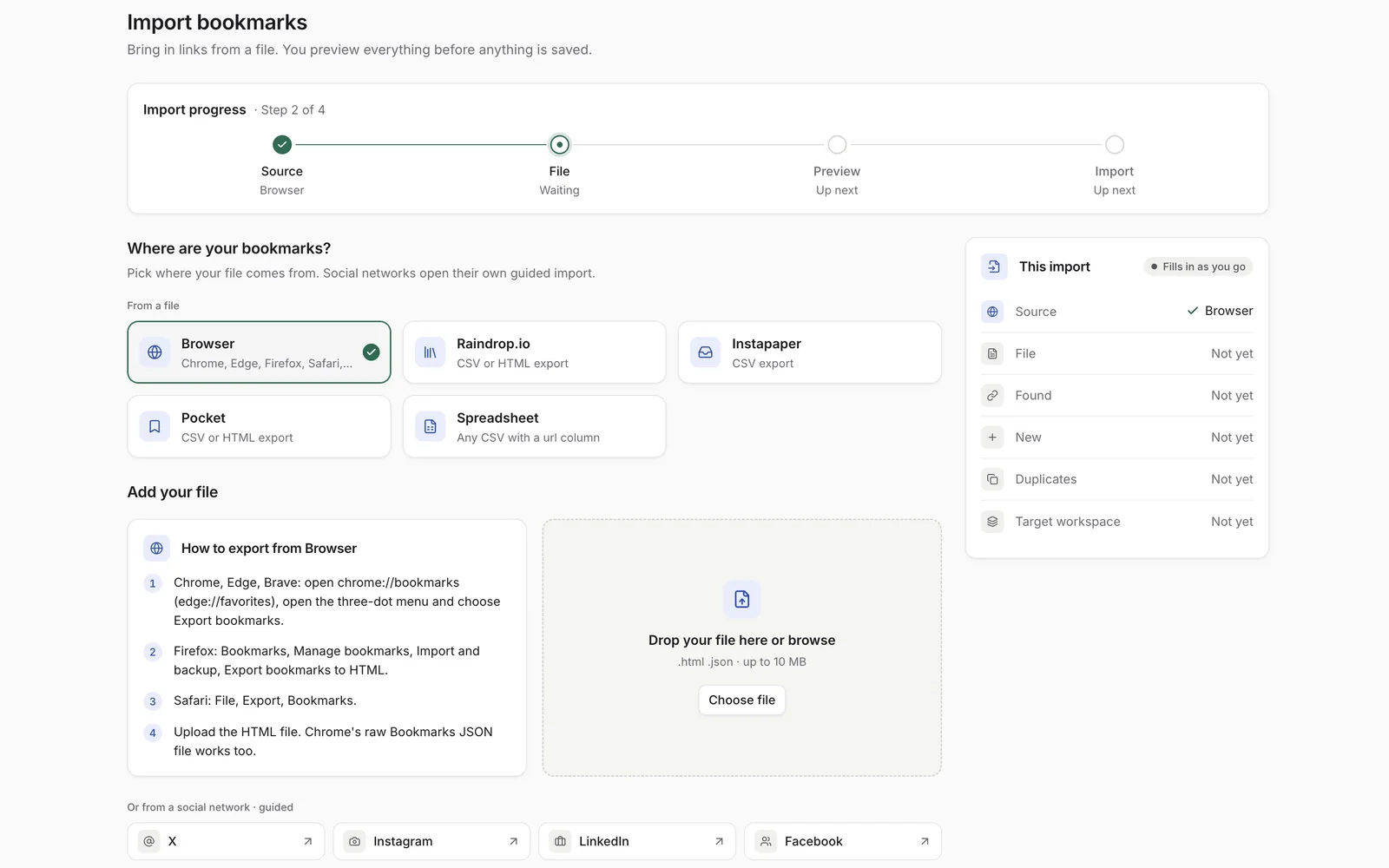
- Choose Import in the sidebar.
- Under Where are your bookmarks?, pick where your file comes from. The page shows how to export from that source.
- Drop your file on the page or choose Choose file. Files up to 10 MB work.
- Check how many links were found, then choose Continue to preview.
- Look through the preview and the import options, then choose Import.
Tip: Nisaba reads the format from the file itself, so picking the wrong source does no harm.
Where to get your file
- Browser (Chrome, Edge, Firefox, Safari, Brave): in Chrome, Edge or Brave, open chrome://bookmarks (edge://favorites), open the three-dot menu and choose Export bookmarks. In Firefox, choose Bookmarks, Manage bookmarks, Import and backup, Export bookmarks to HTML. In Safari, choose File, Export, Bookmarks. Upload the HTML file. Chrome's raw Bookmarks JSON file works too.
- Raindrop.io: open Settings, then Export. Choose CSV to keep notes, tags and highlights, or HTML for a plain folder tree.
- Instapaper: open Settings, then Export, and download the CSV file. Unread items stay in Read Later, and archived items become read.
- Pocket: Pocket closed its export on 12 November 2025, so a new export is no longer possible. If you downloaded a Pocket export file before then (ril_export.html or the CSV), upload it. Tags, save dates and the unread or archived state are kept.
- Spreadsheet: any CSV with a url column and a header row. Recognised columns are url (required), title, note, tags, folder and created. Separate tags with commas and nest folders with a slash, for example Work/Docs. Comma, semicolon and tab separated files work, saved as UTF-8 or from Excel.
Preview and options
Before anything is saved, the preview shows the new links, the links that are already saved, links repeated in the file, the folders and the most used tags.
- Skip links that are already saved: matches the same page even with a different tracking parameter, www or trailing slash. This is recommended.
- Create a workspace for each top-level folder: sub-folders become groups. Turn it off to put everything in Inbox. When you reach the workspace limit on Free, the links of further folders go to Inbox.
The import runs in the background. You can leave the page; a notice appears when the import is finished. The import report shows what was added, which duplicates were skipped and what could not be imported. Recent imports lists your earlier imports.
Saved posts from social networks
Upload the JSON export you download from X, Instagram, LinkedIn or Facebook. Nisaba never asks for your social passwords and does not scrape accounts.
Each network has its own guided import. On the Import page, under Or from a social network, pick the network. Its page shows how to get the export.
- X: bookmarks or likes. Your likes are in the archive of your data that X lets you download, in data/like.js; rename the file to .json first. For bookmarks, use a bookmark exporter that produces JSON with the post links or ids.
- Instagram: saved or liked posts. When you download your information, choose JSON as the format, not HTML.
- LinkedIn: saved posts or reactions. LinkedIn's own archive is CSV, so use a saved-posts exporter that produces JSON, or convert the file to JSON.
- Facebook: saved or liked posts. When you download your information, choose JSON as the format.
Social imports have no preview step. Posts you already saved are skipped, matched by their canonical URL, so importing the same export twice adds nothing. Imported posts are grouped in a workspace of their own, for example X Bookmark Engine. If you have reached the workspace limit on Free, they go to Inbox instead.
Turn on Auto AI scan + categorize after import if you want the imported posts categorized with AI. This uses AI credits.
Connected accounts
GitHub, Mastodon, Bluesky and YouTube connect through the platform's own sign-in page instead of a file. Nisaba asks only for read-only access and never for your password, and it cannot post, like, follow or change anything in that account. The Import page shows Connected accounts only for the platforms that are already switched on, so you may not see all four yet.
- GitHub: your starred repositories.
- Mastodon: your bookmarks and favourites. You type the name of your server, for example mastodon.social.
- Bluesky: your bookmarks and likes. You type your handle, for example alice.bsky.social.
- YouTube: your liked videos and your own playlists.
- On the Import page, under Connected accounts, choose the button for the platform, for example Connect GitHub.
- Read what Nisaba will read, choose Agree and continue, and approve the access on the platform's page.
- Nisaba reads your saved items in the background. When they are ready, choose Review, check the preview and import them.
Nisaba reads an account when you connect it and again when you choose Import new items; it does not import new items on its own. Disconnect removes Nisaba's access at the platform, and you choose whether to keep or delete the items imported from that account. Your connections are also listed under Settings → Data & export.
Note: YouTube: Google may warn that the app is not verified yet, and the number of YouTube connections is limited until Google's review is complete. Once a week Nisaba checks that its access is still valid, updates video titles and channel names and removes videos that are gone. Disconnecting YouTube, or removing Nisaba's access at Google, deletes the imported videos, as YouTube's rules require.
Note: Saving the same link twice is detected when you save or import, and you are warned before a copy is made. Maintenance in the sidebar lets you check duplicates at any time. On Free you check whether a link still works yourself, one link at a time; Pro checks your links automatically on a schedule and reports broken ones.
Last updated: