Using Nisaba
Save and read pages
The ways to save a page, the reader, highlights and notes, and saved copies.
Everything you save lands in your Library. Read without clutter, highlight passages and add notes.
Ways to save
- Add link: choose Add link at the top of the screen, paste an address and press Enter.
- The Chrome extension saves the page you are on with one click.
- On Android, share a page to Nisaba after you have installed it as an app.
- Import brings in the bookmarks you already have.
When you save a link, Nisaba's server fetches the page to read its title, description and text and to keep a readable copy for you. The website sees the IP address of our server, not yours.
Nisaba keeps the page text, so you can read and highlight it even after the site changes or disappears. Pages behind a login or paywall cannot be fetched by the server; save them from the browser extension to capture what you see.
AI proposes a category and tags for each save. Every suggestion can be edited or removed.
Read Later
Choose Later in the extension, or Save for Later in a bookmark's menu. Read Later in the sidebar lists everything you put aside.
Read in the reader
- In your Library, click a bookmark to preview it beside the list.
- Open it in the reader with the book icon, or choose Open in reader in the bookmark's menu.
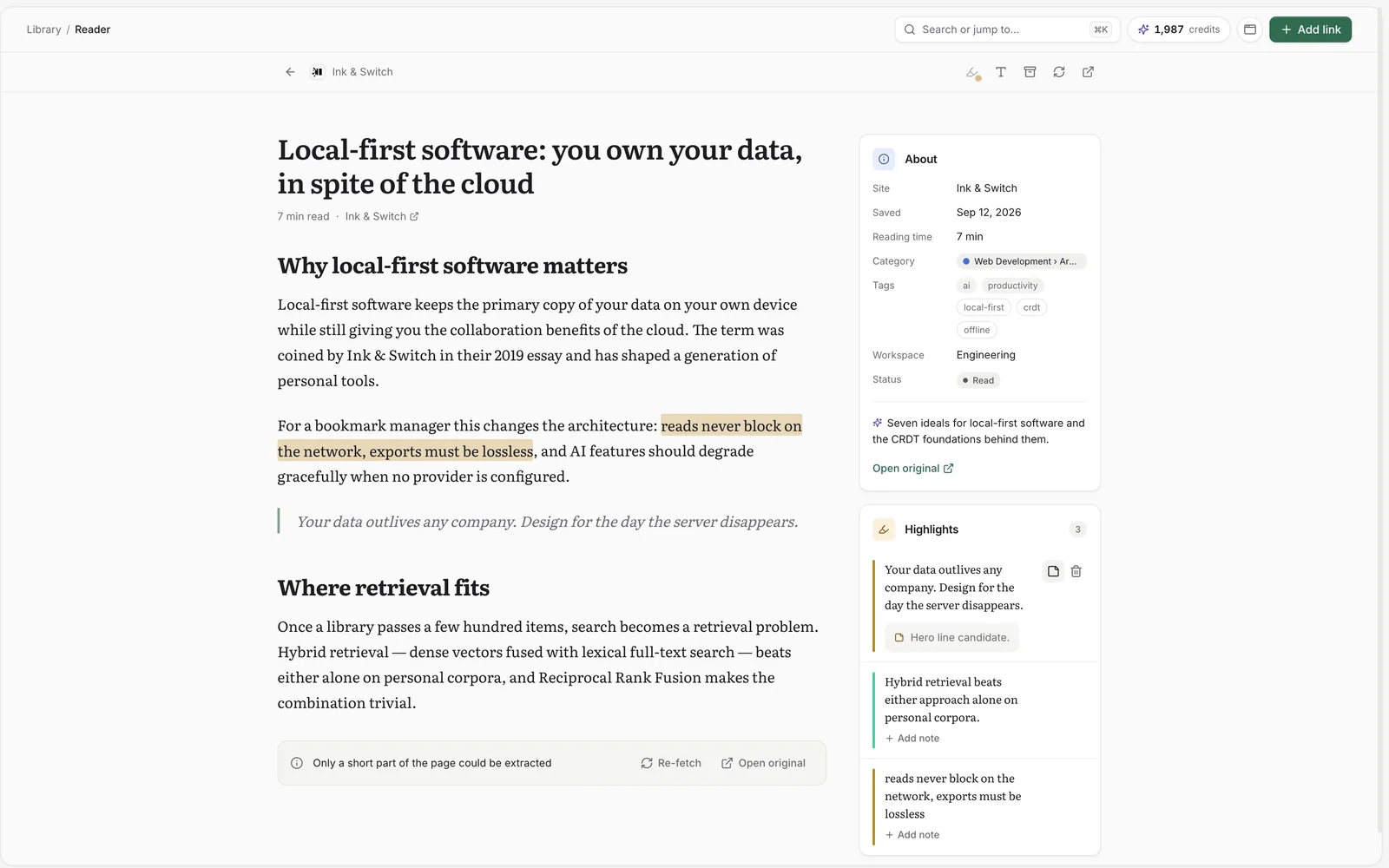
- Text settings change the text size and the typeface, Serif or Sans.
- Re-fetch article loads the page again. If that does not work, you keep reading the copy saved earlier.
- Open original opens the page on its own site.
- About shows the site, the save date, the reading time, the category, the tags and the workspace.
Tip: If only a short part of the page could be extracted, the reader tells you. Try Re-fetch, or save the page from the extension.
Highlights and notes
- In the reader, select a passage and pick a color.
- Choose Add note under the highlight to write down why it matters.
Highlights and notes stay with the bookmark, and every highlight is collected under Highlights in the sidebar. There you can search quotes, notes and page titles, filter by color and copy a highlight as Markdown.
Saved copies
A saved copy keeps a page readable even if the original changes or disappears. In the reader, the Saved copies menu lists the copies of a page, and All saved copies shows every page that has one.
Send to Wayback, in the same menu, sends the address of the page to the Internet Archive, which keeps a public snapshot. Only do this for pages that are public. Your name and account are not sent.
Note: Uploaded files and saved page copies share your file storage. Free includes 500 MB of file storage, and Pro includes 10 GB. When it is full, nothing you saved is removed; delete saved copies or files to make room. Settings → Data & export shows how much you use.
Last updated: