Getting started
Install the Chrome extension
Set up the Nisaba extension in Chrome, connect it to your account and save pages with one click.
The extension is available for Chrome and needs Chrome 120 or newer. It saves the page you are on with one click, and it can keep your open tabs in Nisaba if you want.
Install and pin it
- In Nisaba, open Settings, then Extension.
- Under Get the extension, follow the step Install it in Chrome.
- Pin it to the toolbar: click the puzzle-piece icon in Chrome's toolbar, then the pin next to Nisaba.
Connect it to your account
The easiest way is to sign in on nisaba.site in the same browser. Saving turns on as soon as you are signed in.
An access token also works when you are signed out and survives browser restarts:
- In Nisaba, open Settings, then Extension. Under Access tokens, keep the recommended Chrome extension option and choose Generate Token.
- Copy the token now. It is not shown again.
- Open the extension, choose Settings, paste the token under Access token and press Save changes.
- If something does not work, choose Test connection. It tells you what is wrong.
Tip: The token stays on this device and is never synced by Chrome. You can revoke it in Nisaba at any time.
Save a page
- Open the page you want to keep and click the Nisaba icon in the toolbar.
- To add tags or pick a workspace, open Tags and workspace first.
- Choose Save to Nisaba, or Later to put the page in Read Later.
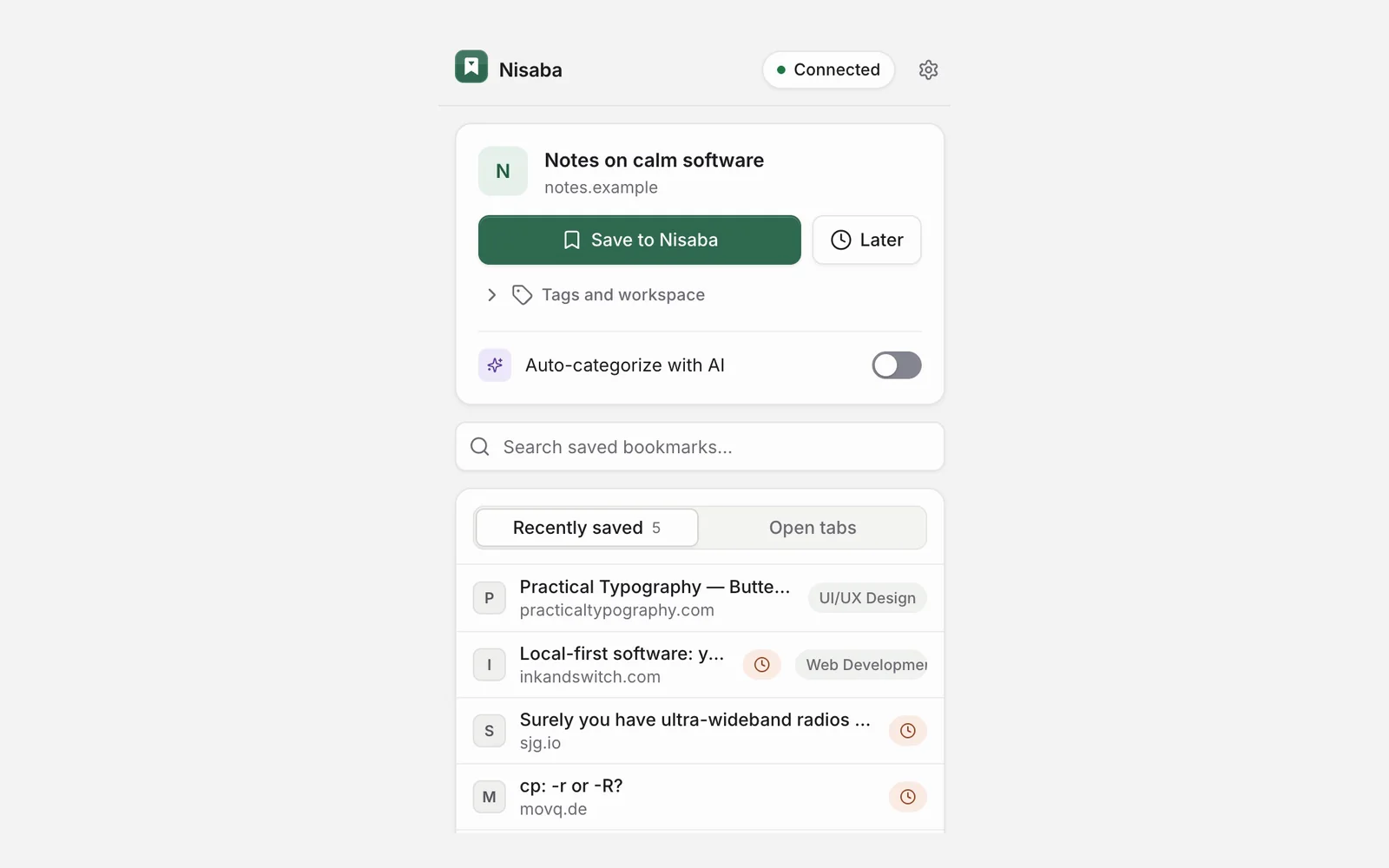
Turn on Auto-categorize with AI in the popup if you want Nisaba to sort each page you save from the popup. This uses AI credits.
You can also save without opening the popup. Alt+Shift+S saves the page you are on, and Alt+B opens the popup. Right-click any page and choose Save page to Nisaba, or right-click a link and choose Save link to Nisaba. You can change both shortcuts at chrome://extensions/shortcuts.
Pages behind a login
Nisaba's server cannot open pages behind a login, paywall or cookie wall. Your browser can, so the extension can send the page as you see it.
After a save, the popup offers a full copy of the page. Choose Save copy to send the page as you see it, or Not now. In the extension's Settings, under Full-page copies, you choose between Ask me after saving, Always include a full copy and Never.
Note: The extension reads only the page you save, at the moment you save it. Typed text, password fields and hidden form fields are never included.
If the connection drops
If the connection drops, the save waits in a local queue and retries, so nothing is lost. The toolbar badge shows how many saves are waiting, and the extension's Settings list them under Offline queue with the reason.
Nisaba needs an internet connection. The queue only holds your saves until the server answers.
Keep your open tabs (optional)
The extension can keep a copy of your open tabs and groups in Nisaba, with a history you can restore from. It is off until you turn it on. Free shows the open-tab history from the last 30 days, and Pro shows all kept snapshots. Every plan keeps the latest 1,000 snapshots; older ones are deleted.
- Open the extension's Settings and go to Open tabs.
- Turn on Sync open tabs and choose which tabs: Current window, Selected tabs in this window or All normal windows.
- Press Save changes and allow tab access when Chrome asks.
The extension then sends the title, address, icon, group and pinned state of normal tabs, which tab is active, and this device's name. Incognito windows and browser pages such as chrome:// are never sent. Your tabs appear in Nisaba under Open tabs.
If you turn sync off again, the extension removes tab access and deletes the live snapshot. Earlier versions stay in Nisaba until you delete them on the Open tabs page.
What the extension can see
- By default it can contact only nisaba.site. Nothing goes to third parties.
- It reads a page only at the moment you save it, and only that page. It never watches your browsing.
- Open-tabs sync is off until you turn it on.
- The extension's Settings explain each Chrome permission under Permissions.
On your phone
There is no native mobile app yet. The web app works in current browsers on desktop and phones and can be installed as an app.
On Android, install Nisaba as an app from the browser menu (Install app). Nisaba then appears in your phone's Share menu: share any page and it lands in your library.
On an iPhone or iPad, Safari cannot add Nisaba to the Share menu. Add Nisaba to your Home Screen and paste links into Nisaba.
Last updated: