Move to Nisaba
Import Raindrop.io bookmarks into Nisaba
Export Raindrop.io as CSV or HTML and import it into Nisaba. CSV keeps notes, highlights and tags. You preview before saving.
To move from Raindrop.io, open Settings, then Export in Raindrop and choose CSV. Upload the file in Nisaba under Import, check the preview and choose Import. CSV keeps more than HTML, so pick CSV if you want your notes and highlights.
CSV or HTML
| Raindrop data | CSV | HTML |
|---|---|---|
| Title, URL, tags, date added, note | Kept | Kept |
| Folder | Kept, as the folder path | Kept |
| Excerpt | Kept, as the description | Not kept |
| Highlights | Kept, added to the notes | Not kept |
| Favourite | Kept, as pinned | Not kept |
| Cover image | Not kept | Not kept |
The table comes from a test on 1 November 2026 with sample files. It is not a test on a real account. Choose HTML only if you want a plain folder tree.
Move your collection
- In Raindrop.io, open Settings, then Export. Choose CSV.
- In Nisaba, choose Import in the sidebar. Under Where are your bookmarks?, pick Raindrop.io.
- Drop the file on the page or choose Choose file. Files up to 10 MB work.
- Check how many links were found, then choose Continue to preview.
- Look through the preview and the options. Skip links that are already saved is recommended. Create a workspace for each top-level folder turns each top-level folder into a workspace, with sub-folders as groups. Turn it off to put everything in Inbox.
- Choose Import.
Say you keep a folder called Design with a sub-folder called Type, and you highlighted passages in a dozen articles. With the CSV, the folder path comes over and the highlights land in each bookmark's notes. With the HTML, the folders come over and the highlights stay in Raindrop.
Tip: Keep your Raindrop.io account until you have read the import report and looked through your library in Nisaba.
The import report
The import runs in the background. You can leave the page, and a notice appears when it is finished. The import report shows what was added, which duplicates were skipped and what could not be imported. Recent imports lists your earlier imports.
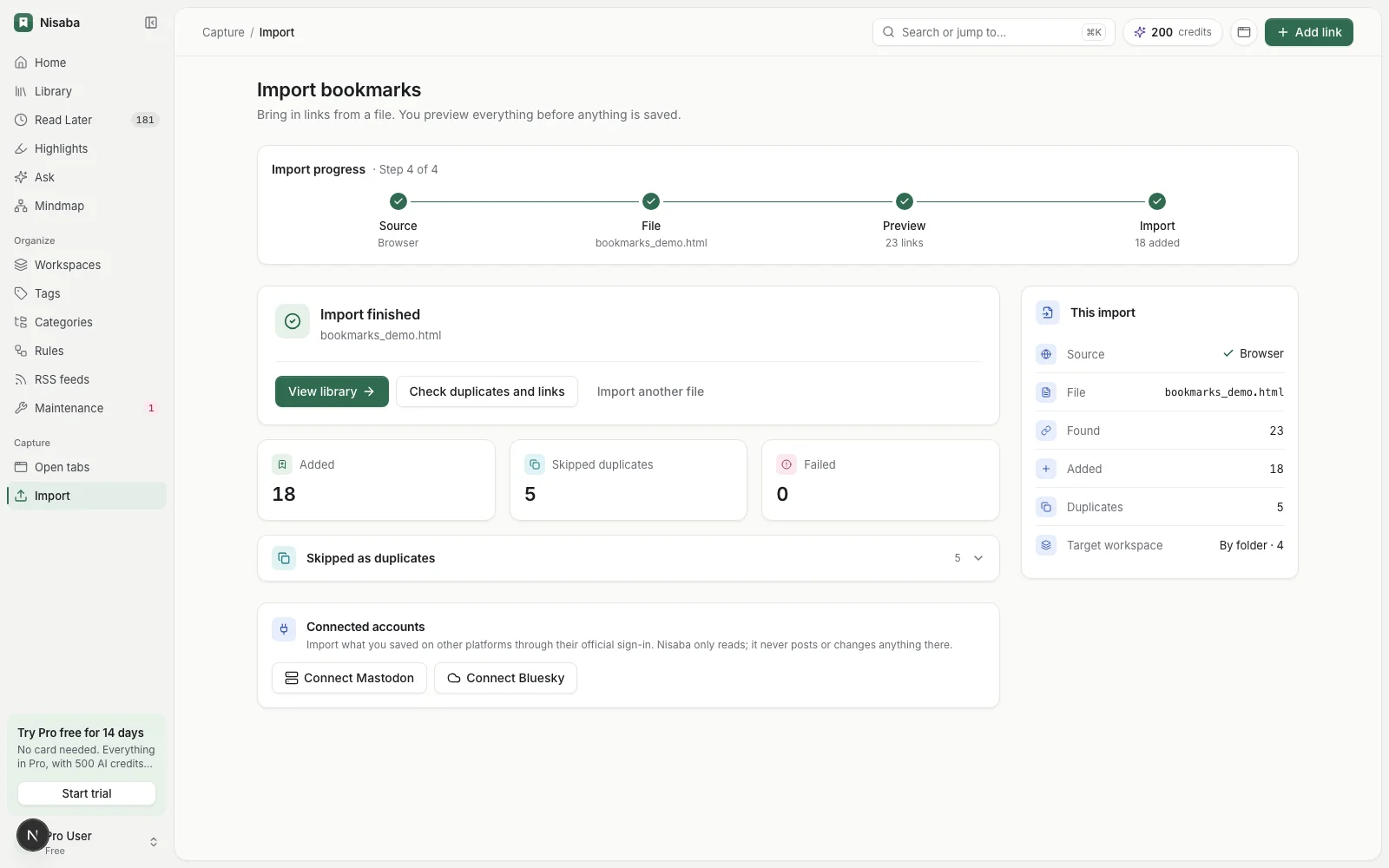
Duplicates are matched as the same page, even with a different tracking parameter, www or trailing slash. Maintenance in the sidebar lets you check duplicates at any time.
Limits
- Bookmark files can hold up to 10 MB and 50,000 items.
- Cover images do not come over in either format.
- On Free you can have 3 workspaces besides Inbox. The links of further folders go to Inbox.
- Nisaba needs an internet connection, and there is no native mobile app yet.
Last updated: