Use cases
Use Nisaba as a read-later app
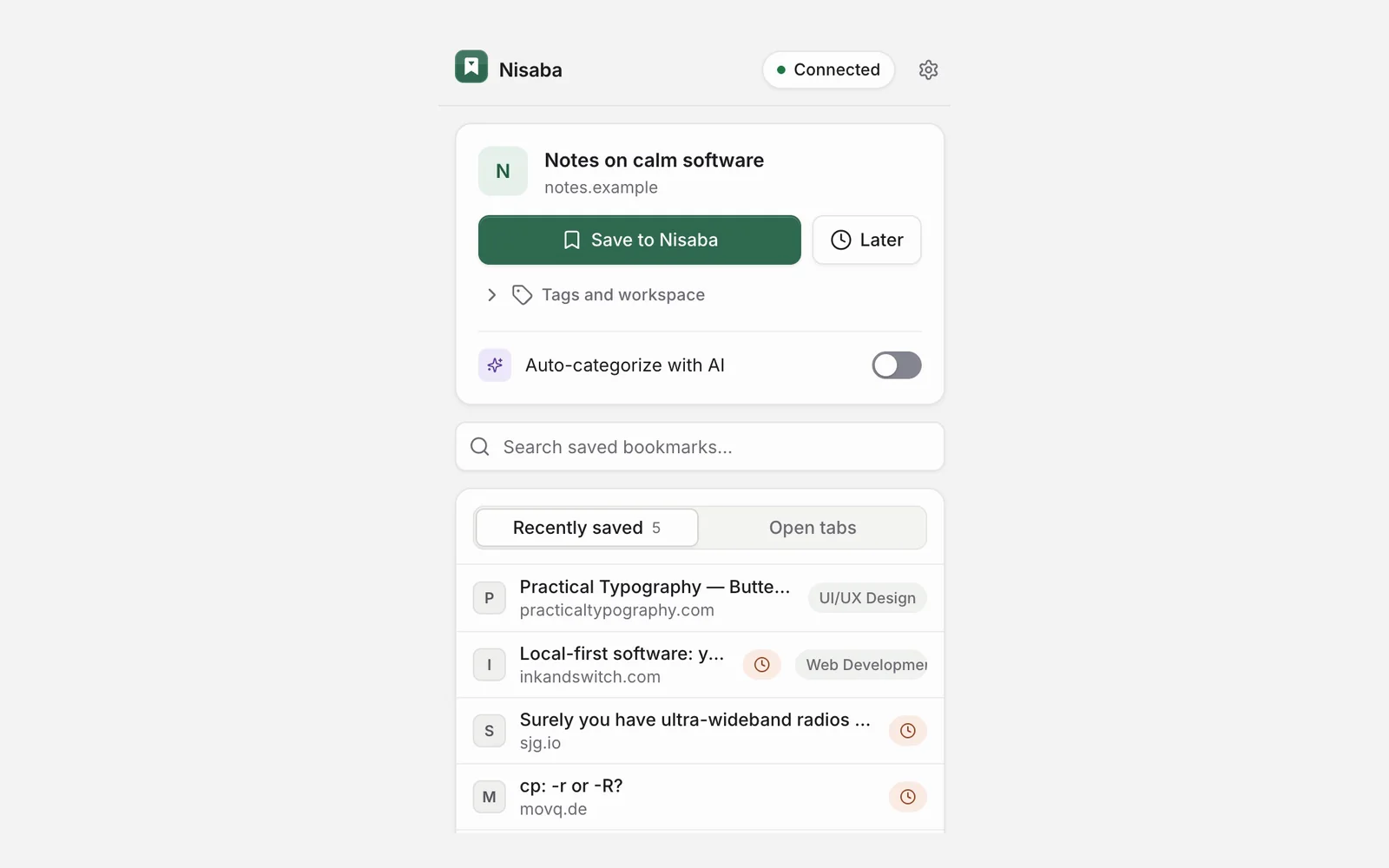
Put pages aside in Read Later, read them in a clean reader, highlight and add notes. Limits: no native mobile app, needs a connection.
Nisaba works as a read-later app. You put a page aside with Later in the extension or Save for Later in a bookmark's menu, and Read Later in the sidebar lists everything you put aside. You read it in the reader, where you can highlight passages and add notes.
Put a page aside
- On the page, click the Nisaba icon in Chrome's toolbar and choose Later.
- In the web app, choose Add link at the top of the screen, paste an address and press Enter. Then choose Save for Later in the bookmark's menu.
- Open Read Later in the sidebar to see the list.
Read in the reader
- In your Library, click a bookmark to preview it beside the list.
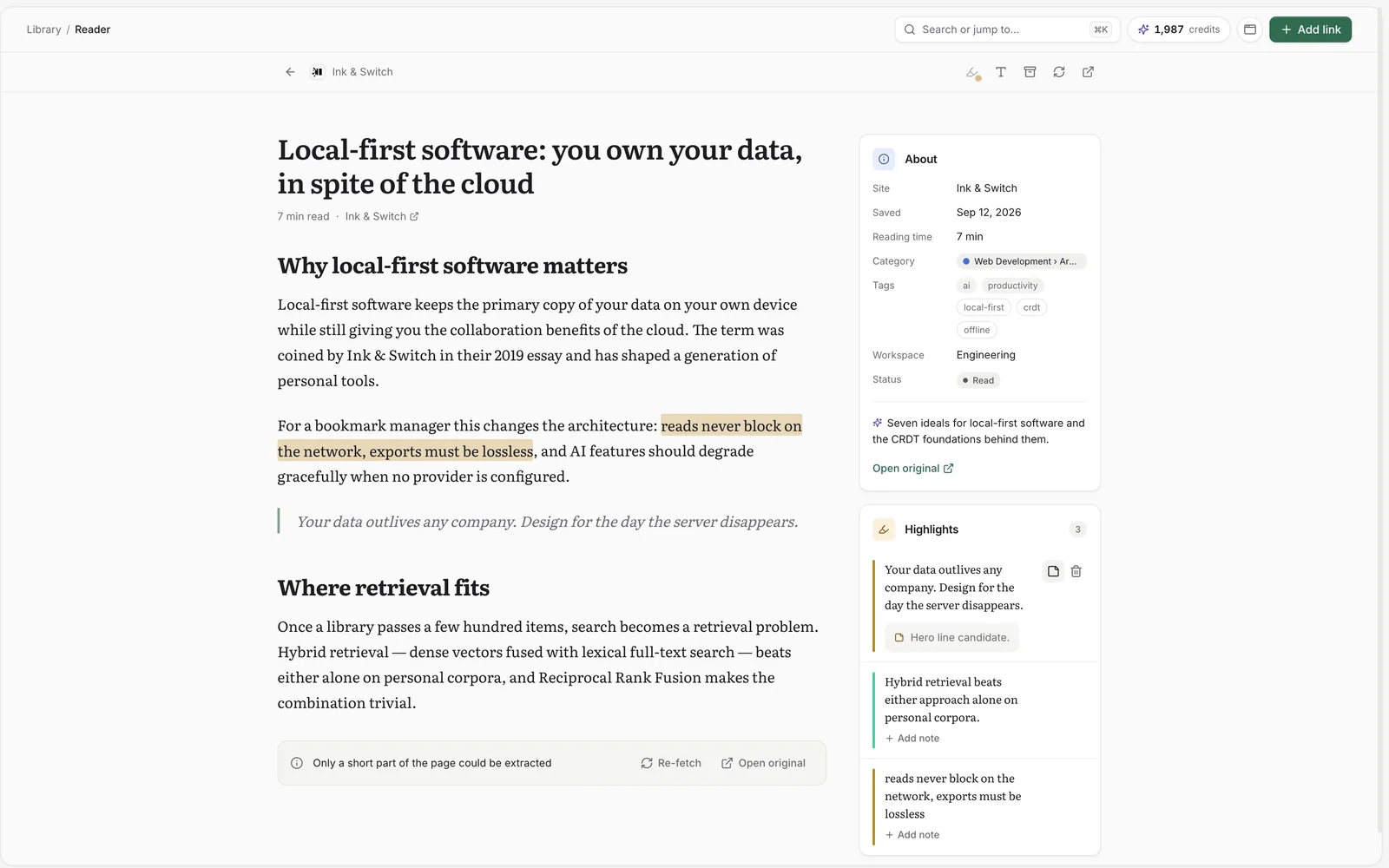
- Open it in the reader with the book icon, or choose Open in reader in the bookmark's menu.
- Use Text settings to change the text size and the typeface, Serif or Sans.
Highlights and notes
Select a passage in the reader and pick a color. Choose Add note under the highlight to write down why it matters. Highlights and notes stay with the bookmark, and Highlights in the sidebar collects them. There you can search quotes, notes and page titles, filter by color and copy a highlight as Markdown.
A readable copy
Nisaba keeps the page text, so you can read and highlight it even after the site changes or disappears. If only a short part of a page could be extracted, the reader tells you. Try Re-fetch article, or save the page from the extension. Pages behind a login or paywall cannot be fetched by the server, so save them from the extension to capture what you see.
An example: you find a long essay at lunch and choose Later. In the evening you open Read Later, read the essay, highlight two passages and add a note to the second one. Next month you search Highlights for a word from that quote.
Limits
- Nisaba needs an internet connection. The web app is not a complete offline library.
- There is no native mobile app yet. The web app works in current browsers on desktop and phones and can be installed as an app.
- On Android, install Nisaba as an app from the browser menu and share pages to it. On an iPhone or iPad, Safari cannot add Nisaba to the Share menu, so add Nisaba to your Home Screen and paste links into it.
- The extension is for Chrome only.
- Saved copies and uploaded files share your file storage: 500 MB on Free and 10 GB on Pro.
Tip: AI proposes a category and tags for each save. You can edit or remove every suggestion, and AI output can be incomplete or wrong.
Last updated: